

How to Connect Heiman Home to Google Home (Complete Guide)
Looking to add your Heiman Smart Devices to your Google Home setup? You're in the right place. In this guide, we'll walk you through the entire process step by step.
What you'll need before you start
- A Heiman Home account with your Smart Devices already set up
- The Google Home app installed on your phone
- A Google account
- Important: Please set your phone language to English, and your region must be set to a country where Google Home is available (e.g., United States)
Step-by-Step Setup
Step 1: Open Google Home
- Launch the Google Home app on your phone
- Make sure you're signed in with your Google account
Step 2: Add a new device
- Tap the Home tab at the bottom
- Tap the + button in the top-right corner
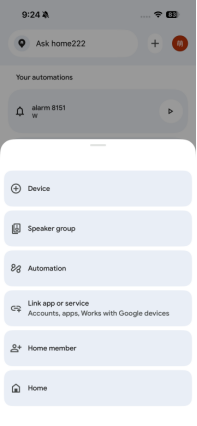
- Select Device from the menu
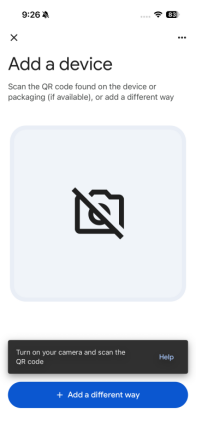
Step 3: Choose "Add a different way"
- On the "Add a device" screen, tap + Add a different way
- This lets you connect devices from third-party brands
Step 4: Find Heiman Home
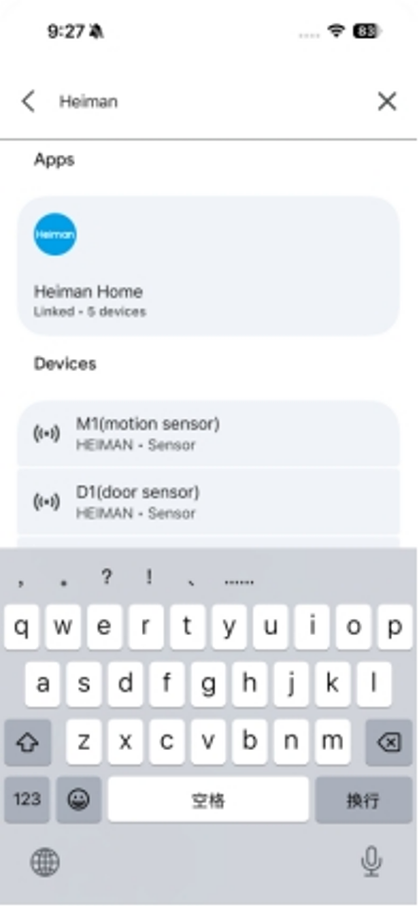
- In the search bar, type "Heiman Home"
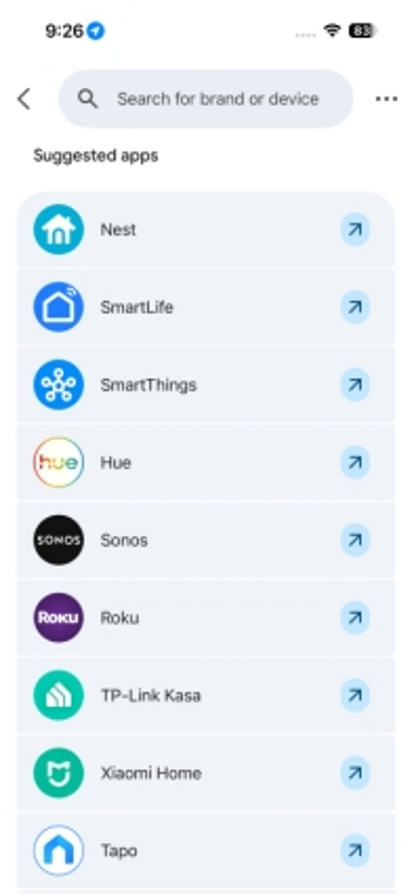
- Select Heiman Home from the search results
Step 5: Link your Heiman account
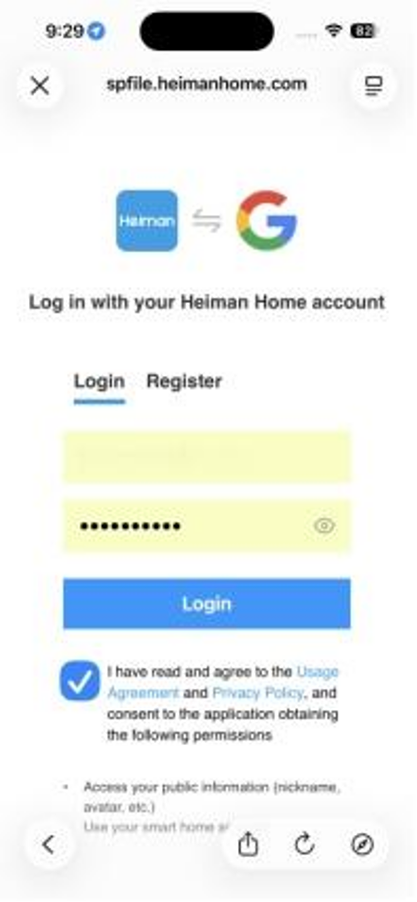
- You'll be redirected to the Heiman login page
- Enter your Heiman Home email and password
- Tap Login
- Check all permission boxes and tap Agree
Step 6: Assign devices to rooms
- After linking, you'll see a list of your Heiman devices
- Select the Smart Devices you want to add to Google Home
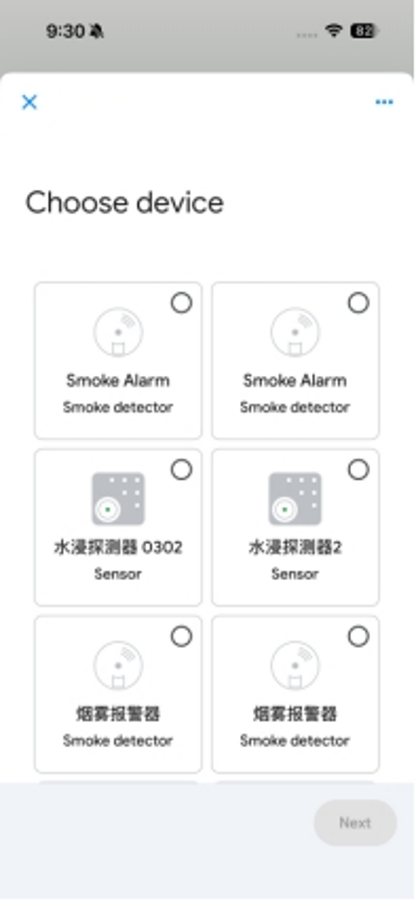
- Tap Next
- Choose a room for each device (or create a new one)
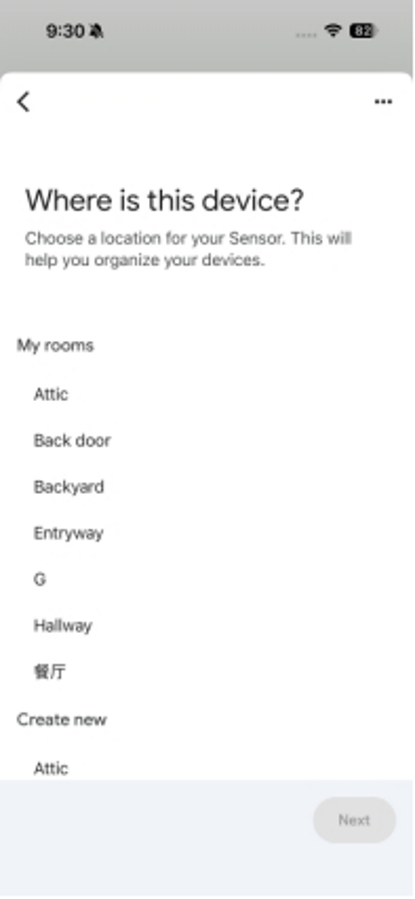
- Tap Next to finish
Setting up Smart Device automations
Want to get notified when smoke is detected? Here's how:
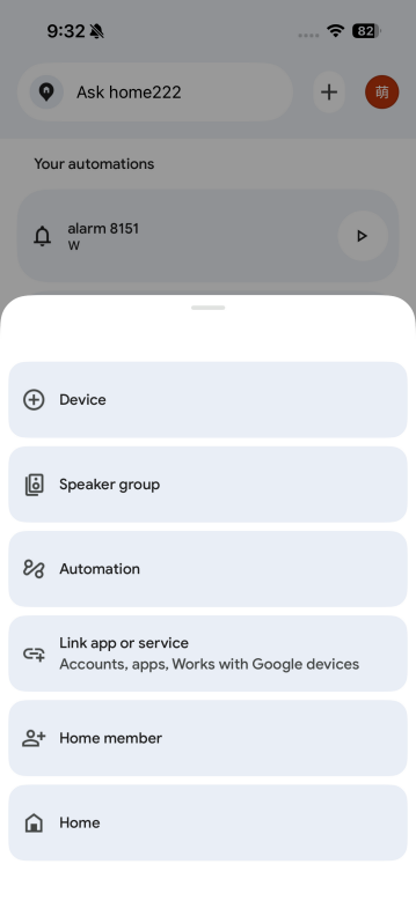
- On the Google Home main screen, tap Automations
- Tap the + in the top-right to create a new automation
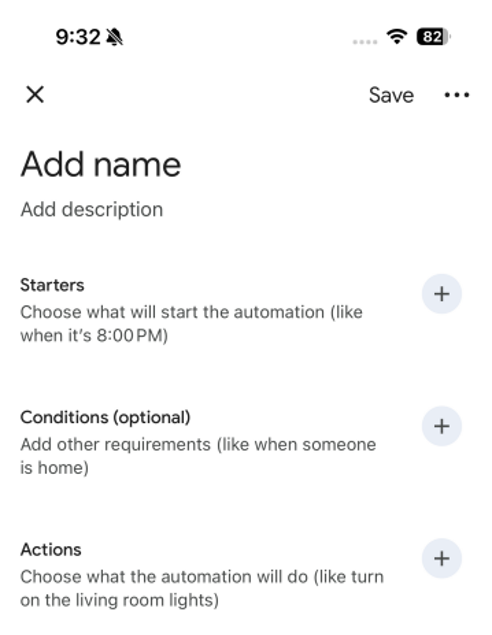
- Add a starter:
-
- Tap + next to Starters
- Select Device
- Choose your Smart Device
- Select the trigger (e.g., "Expressed state - Smoke alarm")
- Add an action:
- Tap + next to Actions
- Select Notify
- Choose who receives the notification
- Customize the notification title and message
- Name your automation and tap Save
Voice commands you can use
- "Hey Google, is the smoke detector on?"
- "Hey Google, what's the status of the smoke alarm?"
Troubleshooting
Can't find Heiman Home in the list?
- Double-check your phone's language and region settings
- Try searching for "Heiman" without "Home"
- Make sure you have the latest version of Google Home
Devices not showing up after linking?
- Check that your devices are online in the Heiman Home app
- Make sure your gateway is connected to Wi-Fi
- Try unlinking and re-linking your Heiman account
Note: Smart home integrations are intended to provide supplemental notifications only and must never replace the primary audible alarm functions of the device.